Digital Accessibility and Learning Materials
Section outline
-
-
This short interactive course aims to equip you with an understanding of how digital accessibility impacts you as a staff member, influences your daily work tasks, and affects your colleagues and students.
By the end of the course, you should:
- be able to describe how digital accessibility applies to working practices,
- have a basic awareness of the legal obligations of your organisation,
- understand that everyone has a level of responsibility to ensure the organisation is working towards compliance.
The course should take approximately 20 minutes to complete.
-
 We have a dedicated Teams site for students and staff with an interest in Digital Accessibility. We share resources, discuss best practices, link to training material, and collaborate on initiatives to ensure all digital content and tools are accessible to all.
 -
Visit the QMUL Accessibility Hub for guidance and resources on creating accessible web content. It includes information on print content as well as digital content.
-
-
Learn more about neurodiversity and discover how you can support and guide students on their unique learning journeys, plus explore learning opportunities for staff to enhance their understanding and practices.
-
Learn about the QMUL guidelines for supporting students provided by the Disability and Dyslexia Service (DDS).
-
-
This section includes an interactive activity that will help you identify some of the most common accessibility mistakes we make while creating teaching materials. You will also find a downloadable checklist that will help you make your new and existing content accessible.
-
Make sure you have been through the Book in the first section before attempting this activity. Go through this activity and try to identify accessibility issues with the content provided (a word document, a powerpoint file, a video and a course area). This activity has captions and audio narration, have a headphone ready if you wish to listen to the narration.
-
Make sure you have been through the Book in the previous section before attempting this activity. Go through this activity and try to identify accessibility issues with the content provided (a word document, a powerpoint file and a video).
Each page has one question and you can get the feedback instantly. You may want to refer to the Checklist below before attempting the activity as the questions are related to the issues highlighted in the Checklist.
-
Download this checklist and use it against your teaching materials to find out if your content meet minimum accessibility requirements.
30.4 KB -
Using Microsoft PowerPoint or Word to create online content? Have a look at our guide to help you ensure your content is accessible.
338.6 KB -
You've seen it a thousand times:
Click here.
Click here for more.
Click here to register.
Click here to learn about our accessibility efforts (the irony).It's vague, it's contextless, and it's everywhere.
This short guide will explain why using 'click here' isn't just annoying, it's creating a barrier for users and excluding them.
110.8 KB -
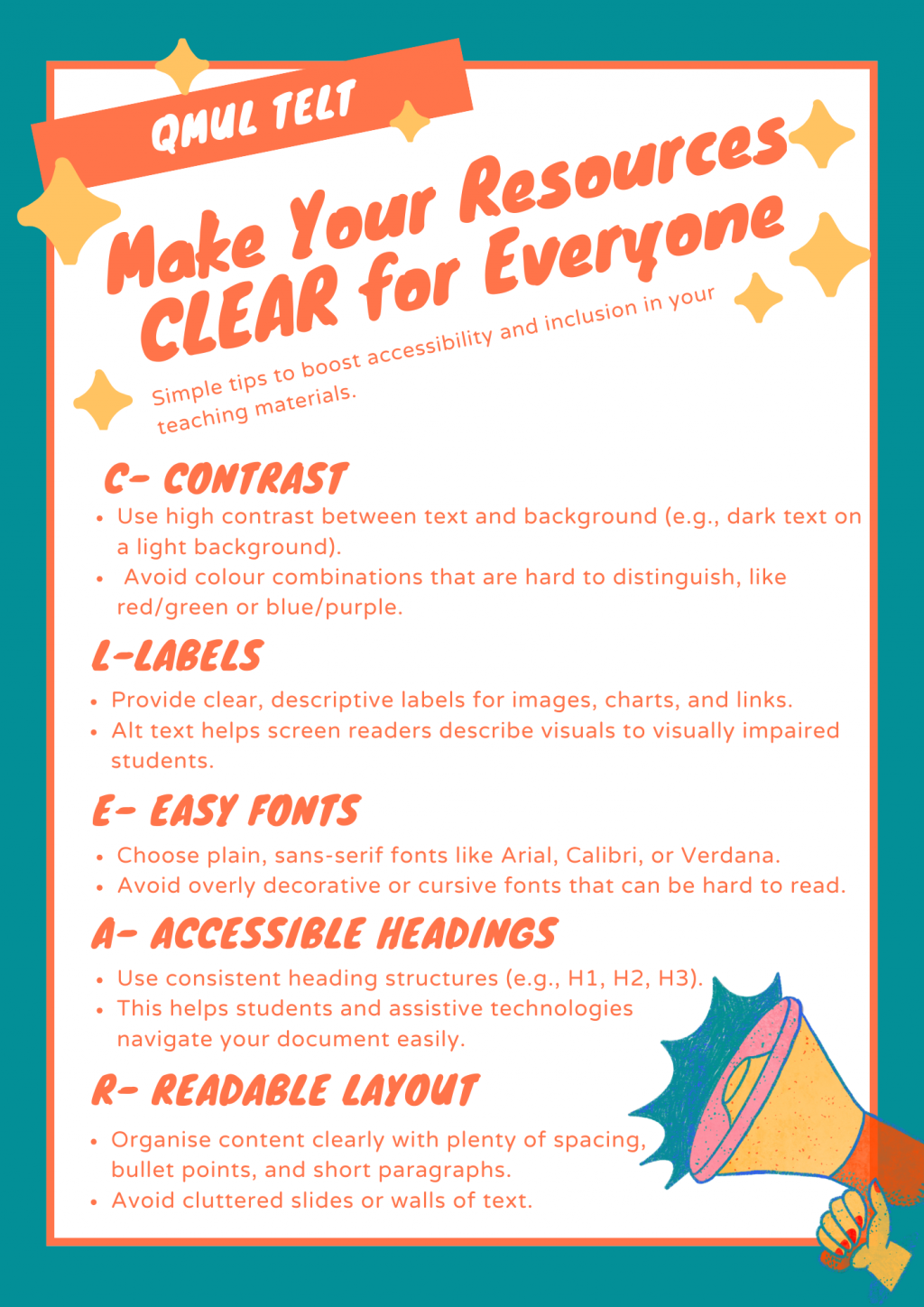
Are your resources CLEAR?
-
-
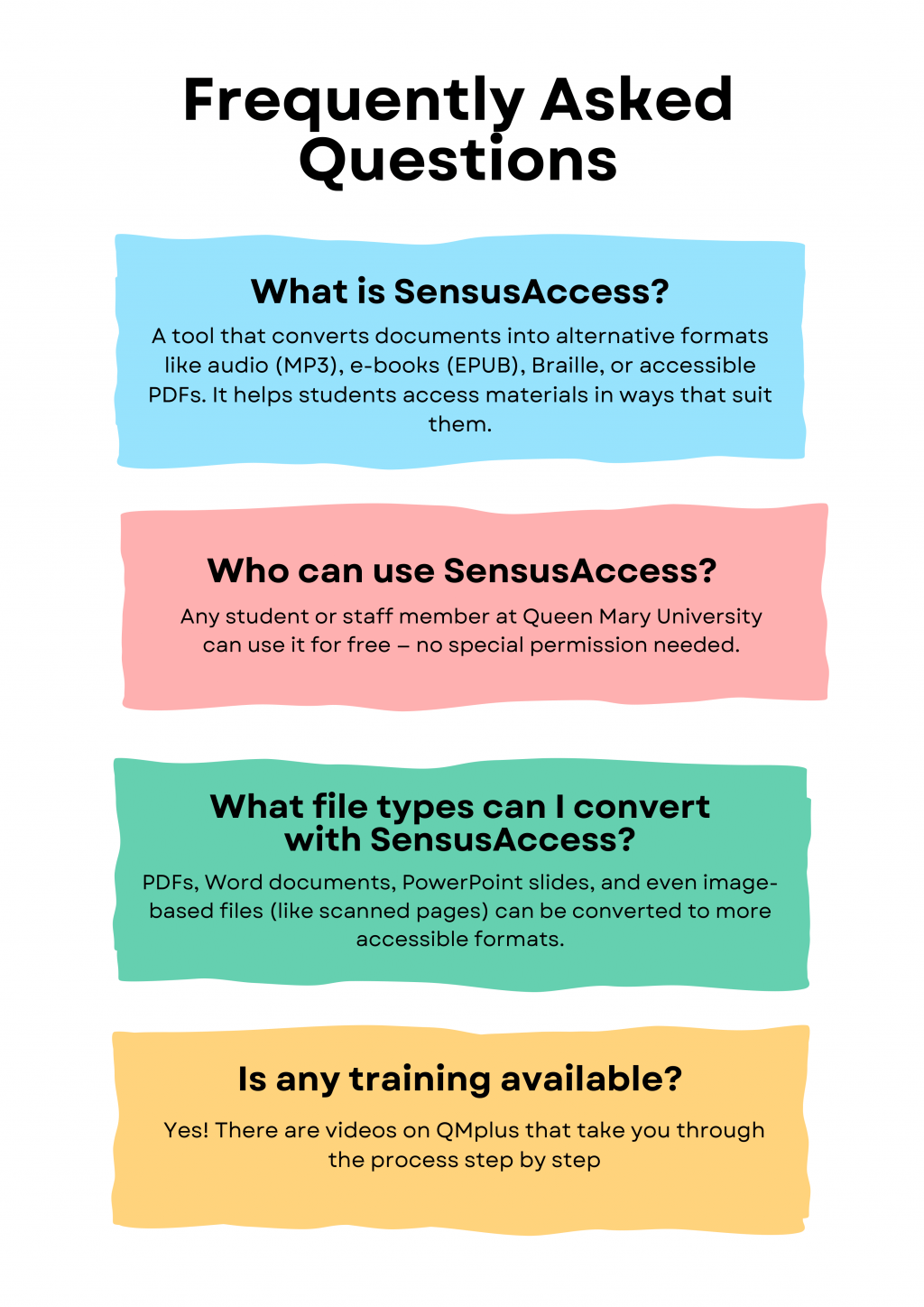
SensusAccess is a self-service portal for educational institutions. It allows students, faculties and staff to automatically convert documents into a range of alternate media including audio books (MP3 and DAISY), e-books (EPUB, EPUB3 and Mobi) and digital Braille.
-
-
QMplus Media has now been decommissioned. The University's primary video platform is now EchoVideo (Q-Review), which is used for lecture capture as well as the upload and sharing of video and audio content by staff and students.
People sometimes have concerns about the accessibility of video and may avoid using it for this reason. However, video can be a highly accessible format, particularly for learners who may find text-based content more challenging.
EchoVideo (Q-Review) includes a range of accessibility features that can help staff create more inclusive learning materials. These include automatic captioning, transcript generation, keyboard navigation, and flexible playback options.
For more information about the transition from QMplus Media and available features, please see the QMplus Media FAQs.