Getting Started with QMplus
Completion requirements
Back
My Modules in QMplus
Viewing page version #15
(Restore this version)
(Restore this version)
Modified: 25 April 2024, 3:17 PM User: Raqib Khan → RK
There are several ways you may find your list of enrolled modules on QMplus. This guide details the different ways.
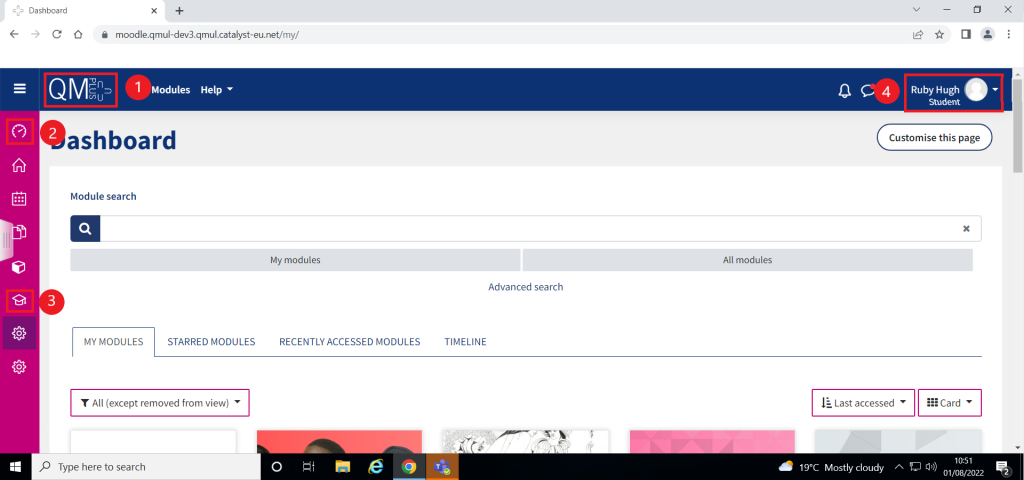
Once you have logged in to QMplus, you will be shown a QMplus dashboard, as below. The image shows the different ways to reach the dashboard from any QMplus page.
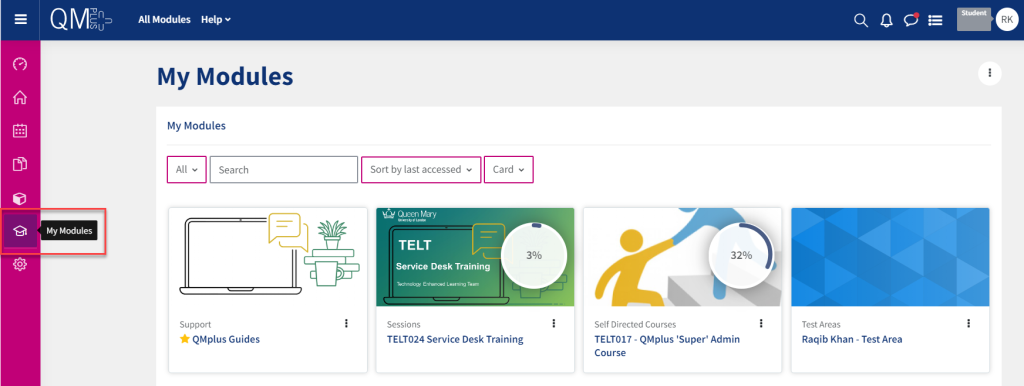
The dashboard displays a timeline list of activities that are due to be completed. Further down It also displays modules that you have starred, as well as a tab with a list of recently accessed modules and another tab with upcoming events. If you would like to view all the modules that you are enrolled on, you will need to click on 'My Modules' from the pink menu bar on the left, as shown in the image above.
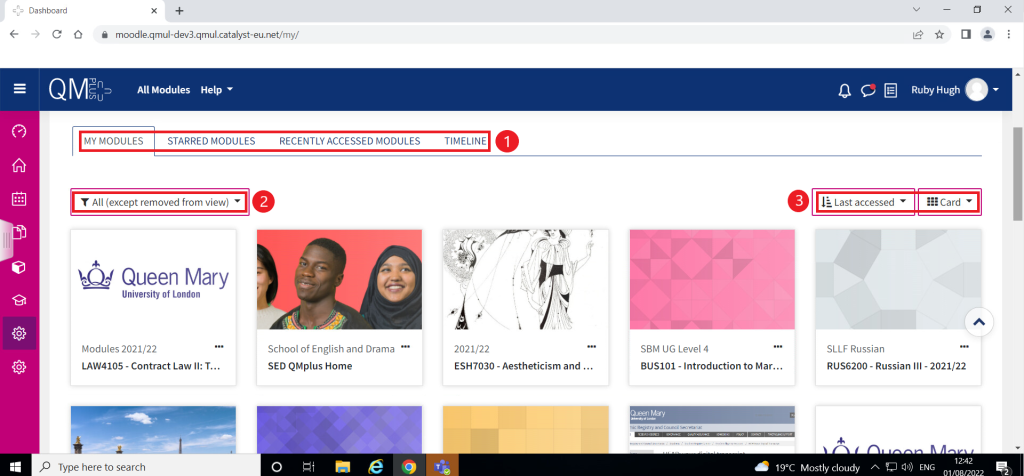
There are various ways to organise and filter your modules.
Finally, you can use the search bar on the dashboard to look for a specific module.

Type in the module code or name into the text box, and select 'My modules' if you just want to search within your enrolled modules. If you select 'All modules', your search will widen to all university modules (although many modules require an enrolment to access course content). 'Advanced search' allows you to apply filters or expand your search terms.
The QMplus dashboard
Once you have logged in to QMplus, you will be shown a QMplus dashboard, as below. The image shows the different ways to reach the dashboard from any QMplus page.
- The QMplus logo on the top left hand corner will take you back to your dashboard.
- The dashboard icon on the pink panel.
- This icon is called 'My Modules' and provides a list of your enrolled modules.
- The messaging icon toggles all your chats with contacts both group and private.
The dashboard displays a timeline list of activities that are due to be completed. Further down It also displays modules that you have starred, as well as a tab with a list of recently accessed modules and another tab with upcoming events. If you would like to view all the modules that you are enrolled on, you will need to click on 'My Modules' from the pink menu bar on the left, as shown in the image above.
My modules in QMplus
Click on the 'My Modules' graduation cap icon from the pink menu bar on the left.There are various ways to organise and filter your modules.
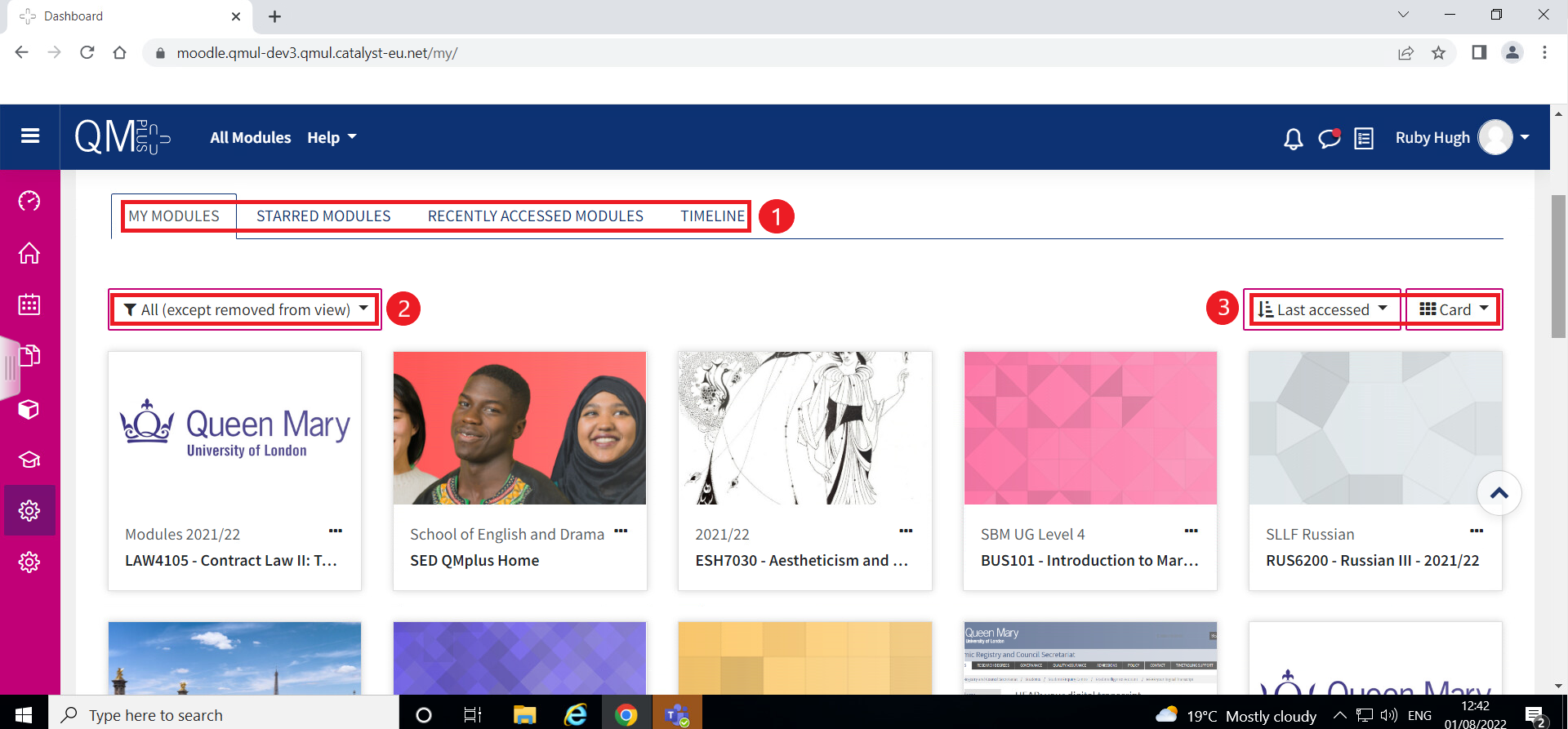
- These tabs allow you to sort through your modules. You can view them all at once; 'star' certain modules to keep them in one place; view only those you have accessed recently; or, view a timeline of upcoming activities from all your modules.
- This also allows you to organise your module list. You have the option to view only current/past/future modules, starred modules, or those you have hidden.
- This controls the order of your modules and how they are displayed. You can view modules in access order or alphabetical. Further, the above example is in card display, but you could change this to a list or summary display.
Please note, teachers may 'hide' courses from students whilst they prepare academic content. In this case, the module will not display in your module list. If you believe you should have access to a module that is not on your list, please contact your school administrator, or take a look at this page - http://elearning.qmul.ac.uk/guide/i-cant-see-my-course-what-should-i-do/
Searching for a module
Finally, you can use the search bar on the dashboard to look for a specific module.

Type in the module code or name into the text box, and select 'My modules' if you just want to search within your enrolled modules. If you select 'All modules', your search will widen to all university modules (although many modules require an enrolment to access course content). 'Advanced search' allows you to apply filters or expand your search terms.
