Uploading a video to your My Media area (Staff and Student)
Completion requirements
Video platform update
Return to the Main QMplus Media Guides
Video platform update
QMplus Media becomes read-only on 30 June. Use EchoVideo (Q‑Review) going forward. Explore EchoVideo (Q‑Review) guidance
Please refer to QMplus Media End of Service FAQs
Learn how to download content from QMplus Media
Learn how to give others access to edit and download your material Collaborate | MyQMUL
Students: from 8 June 2026 you will have greater access to EchoVideo (Q‑Review); check with your course leader if needed.
Staff: see TELT support options.
video downloadable
How to do it? [edit]
- Go to the media portal QMplus Media - QMPlus Media
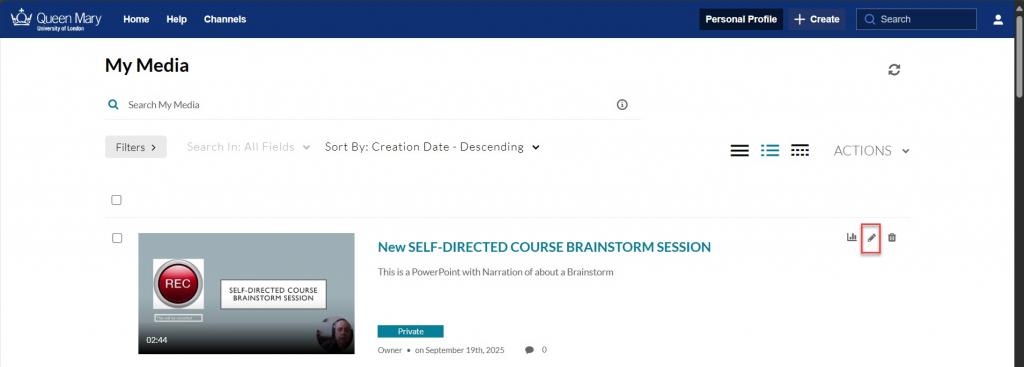
- Navigate to the video in your MyMedia area and find the video. Click on the pencil icon.
- Click on the publish tab, and select private if it is not already selected.
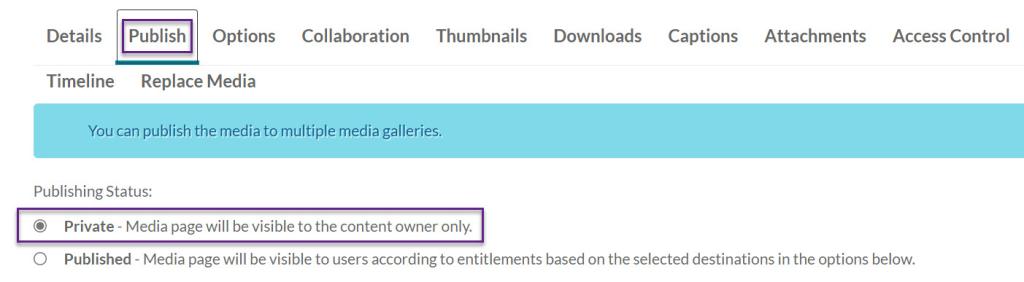
- Save.
- Select the Downloads tab. You will now be able to select the formats that you would like people to be able to download.
The options are:
- Source – this allows users to download the original file in original size and quality. We generally wouldn’t recommend using this option as it may be a very large file in a non-standard format.
- HD/1080 – WEB (H264/4000) – This will be a high definition video file in Mp4 format, good for watching videos on a big screen. If you have made a screen capture then always select this format.
- SD/Large – WEB/MBL (H264/1500) – This is a standard definition file that is smaller in size and takes less space. Good for watching it on mobile devices.
- Basic/Small -WEB/MBL (H264/400) - The newest and smallest option available.
- You can select any or all of the formats. Once you have made your selection, click Save. You will have to repeat this process for all the videos you want to make downloadable.
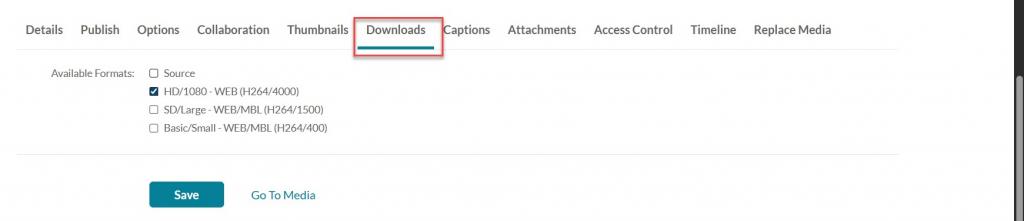
- Now your video will be downloadable. Select Save.
To Download: [edit]
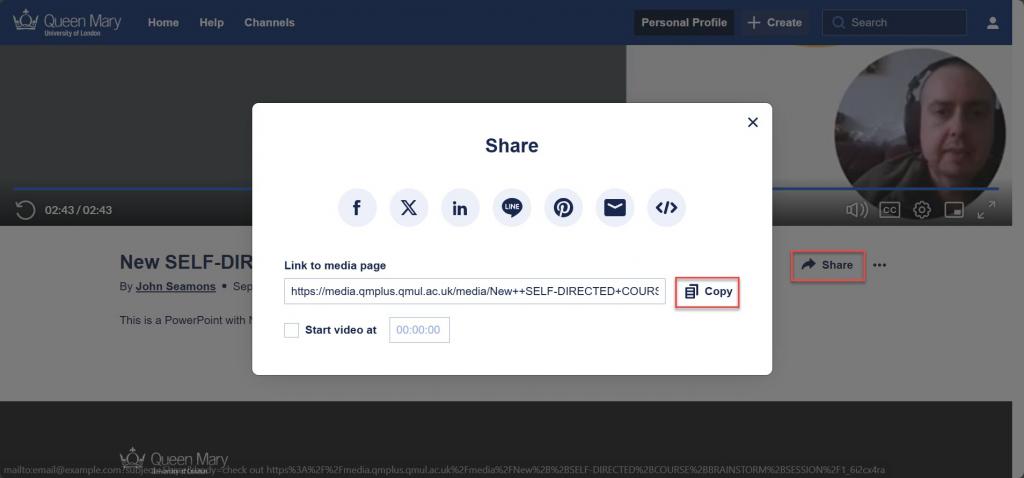
- Go To Media and select the Share button.
- You will be provided with a link to the media page as well as numerous options to share the file.